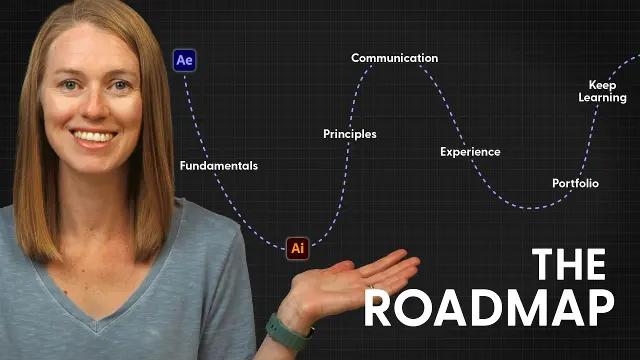
 Motion Design Roadmap and After Effects Guide
#After Effects
1 ideas
Motion Design Roadmap and After Effects Guide
Get new #After Effects ideas by email
Every Thursday: the week's best ideas, with the newest from #After Effects.
Related tags
After Effects Guide for Motion Graphics
What After Effects is
After Effects is a digital motion graphics and compositing program used to create moving imagery for film, video, social content, titles, animations, and visual effects. It is especially useful when you want to combine graphics, text, footage, and illustration into one moving piece. Unlike a simple video editor, it is built for layers, timing, animation, and visual control.
People use After Effects for many kinds of work: animated logos, title sequences, lower thirds, explainer graphics, screen replacements, light visual effects, and polished transitions. It can also be used for more artistic work such as kinetic typography, abstract animation, and layered collage-style motion.
Where it comes from and why it matters
Read more
After Effects grew out of the need for a flexible tool that could bring still design into motion. It sits somewhere between graphic design and filmmaking, which is why it has become a standard part of many creative workflows. If you already know design tools, you’ll recognize the importance of layers, masks, shapes, and typography. If you come from video editing, you’ll notice that After Effects gives you much finer control over individual elements.
That flexibility is its main strength. You can move, fade, scale, distort, blur, track, mask, and blend elements in ways that are difficult to do elsewhere.
Main ways people use it
- Motion graphics: animated text, icons, charts, and graphics
- Compositing: combining multiple visual elements into one scene
- Visual effects: adding movement, glows, overlays, and clean-up work
- Typography animation: making text feel expressive and dynamic
- Simple character animation: moving illustrations or shapes frame by frame or with keyframes
Core techniques to learn first
If you are beginning, start with the basics rather than trying to learn everything at once.
- Layers: each object sits on its own layer, and order matters
- Keyframes: these mark changes over time and are the heart of animation
- Easing: smooth motion usually looks better than linear movement
- Masks and mattes: these hide or reveal parts of a layer
- Shape layers: useful for clean, scalable graphic animation
- Parenting: one layer can follow another, which helps with simple rigging
- Effects and presets: add style, motion, or correction, but use them carefully
Tips for beginners
Start with short projects. A bouncing shape, a simple text reveal, or a moving logo teaches more than a complex scene with too many layers. Keep your compositions organized by naming layers clearly and grouping related elements. Use reference footage or sketches so your animation has a purpose, not just movement.
Try to animate with intention. Good motion is not only about making things move, but about giving them rhythm, hierarchy, and clarity. Watch how elements enter and leave the frame, and think about how fast or slow they should move.
It also helps to think in design terms: spacing, contrast, balance, and readability still matter in motion. If text is hard to read or an effect distracts from the message, simplify.
A practical way to approach it
A useful workflow is to plan, build, animate, refine, and review. Begin with a rough idea of what should move and why. Build your scene with simple shapes or imported artwork. Animate the main actions first, then polish timing, motion blur, and transitions. Finally, review the piece at full speed and remove anything unnecessary.
After Effects can feel complex at first, but that is because it opens the door to many kinds of visual storytelling. Once you understand its core logic, you can use it for clean, subtle design or for highly expressive motion work.
#After Effects: frequently asked questions
What exactly is After Effects, and how is it different from a normal video editor?
It is a motion graphics and compositing program built for layers, timing, and animation, rather than for cutting footage together. A video editor arranges whole clips in sequence, while this tool lets you control each element inside a frame separately — moving, fading, masking, or blending it. That is why it is used for titles, animated logos, and visual effects work that would be awkward to build in an edit.
What do I need before I start learning it?
You need a computer that can run the software comfortably, the program installed, and some artwork or footage to work with — simple shapes and plain text are enough at the beginning. Just as important is a basic feel for design: layers, spacing, contrast, and typography carry over directly. If you have used a graphic design tool or a video editor before, you already recognize much of the logic.
Which skills should a beginner learn first?
Start with layers and keyframes, since everything else rests on those two ideas, then add easing so movement does not look robotic. After that, learn masks and mattes for revealing and hiding things, shape layers for clean scalable graphics, and parenting so one element can follow another. Effects and presets come later and are best used sparingly.
How do I keep a project from becoming messy and unmanageable?
Name your layers clearly, group related elements, and keep compositions to a sensible size instead of stacking everything into one scene. Working from short projects — a bouncing shape, a text reveal, a moving logo — teaches more than a big complicated scene. A rough sketch or reference clip also keeps the animation purposeful rather than just busy.
How should I structure my process from idea to finished animation?
Work in stages: plan what should move and why, build the scene from simple shapes or imported artwork, then animate the main actions before polishing timing, motion blur, and transitions. Finish by watching it back at full speed and cutting anything that does not earn its place. Reviewing at normal speed is where most clarity problems show up.
What are the most common mistakes beginners make?
Trying to learn every feature at once, and building scenes with far too many layers, are the two that slow people down most. Animating without intention — moving things just to have movement — is another, as is letting an effect distract from the message or making text hard to read. Good motion comes from rhythm, hierarchy, and restraint, so simplifying usually improves the result.
Videos come from YouTube and posts from Instagram; titles and summaries are our own. All rights belong to their creators.