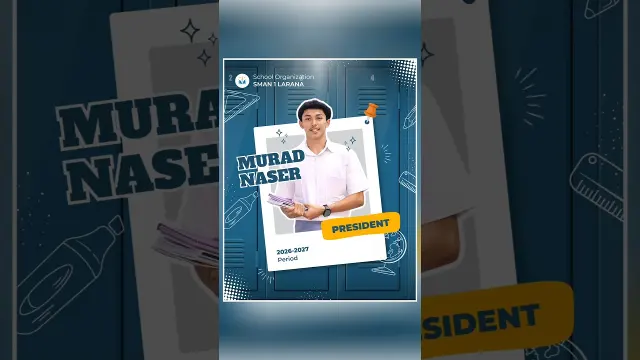
 Professional School Poster Design in Canva Mobile
#Canva Tutorial
1 ideas
Professional School Poster Design in Canva Mobile
Get new #Canva Tutorial ideas by email
Every Thursday: the week's best ideas, with the newest from #Canva Tutorial.
Related tags
A Beginner's Guide to Canva Tutorials
Canva is a browser-based design tool built around a simple idea: people who have never studied graphic design should still be able to make something that looks clean and deliberate. Everything happens in the same window — you pick a format, drop in text and images, and arrange them on a canvas — which is why so many tutorials begin there rather than with professional software. You don't need to install anything, and you can move between a laptop and a phone without losing your work.
What tutorials usually cover
Most beginner material follows the same path. First, choosing a template in the right size for where the design will appear: a square post, a tall story, a printed page, a presentation slide. Second, replacing the placeholder content with your own — swapping photos, retyping headings, adjusting colours to match. Third, exporting in a format that suits the destination, whether that's an image for a screen or a file a printer can accept.
More advanced tutorials move into layout: grids, frames, spacing, and the arrangement of elements so the eye travels where you intended. Some explore illustration, simple animation, or turning one finished design into several differently sized versions.
Read more
Choosing a tutorial that will actually help
The biggest time saver is matching the tutorial to your format. A guide about social posts will not teach you much about a fold-out brochure, because the constraints are different. Look for material that shows the finished result early, so you can judge whether it's close to what you want, and prefer walkthroughs short enough to finish in one sitting — you learn more by completing something imperfect than by watching an hour you never put to use.
If something in a tutorial doesn't match what you see on screen, the tool has most likely changed its interface since the video or article was made. The concepts usually survive these changes even when the buttons move, so read the explanation rather than memorising click paths.
Habits worth building early
- Work from a template rather than a blank canvas. You'll absorb good spacing and hierarchy by adjusting someone else's arrangement.
- Limit yourself to two typefaces and a small colour palette. Restraint is what separates a tidy design from a busy one.
- Align elements to a consistent grid or guide, and leave margins empty. White space is part of the composition, not wasted room.
- Give your projects clear names and keep them in folders. Finding last month's poster should take seconds.
- Preview at the size your audience will see it, on a phone as well as a desktop, before you export.
- Save copies before experimental edits so you can always return to the version that worked.
The most useful tutorials teach judgement rather than tricks: why a headline needs contrast, why a crowded poster reads as noise, why one strong image beats four weak ones. Learn those, and the software becomes the easy part.
#Canva Tutorial: frequently asked questions
How do I get started with Canva if I've never designed anything before?
Start in the browser and pick a template in the size that matches where your design will live, then replace the sample text and photos with your own. Working from someone else's arrangement teaches you spacing and hierarchy faster than facing a blank canvas. Finish and export something small first, because completing an imperfect design teaches more than watching a long walkthrough.
What do I need before following a Canva tutorial?
Nothing beyond a device with a browser and an idea of where the finished design will be used, since the tool runs in the window without anything to install. It helps to have your own photos and wording ready so you can swap them in as you follow along. Because projects stay tied to your account, you can start on a laptop and finish on a phone.
Which Canva tutorial should I choose?
Match the guide to your format, since advice about social posts won't transfer well to a printed brochure with different constraints. Look for one that shows the finished design early so you can tell whether it's close to your goal, and favour walkthroughs you can complete in a single sitting. If the screen doesn't match the tutorial, the interface has probably changed — read the reasoning instead of memorising where the buttons are.
What mistakes do beginners make most often in Canva?
The usual ones are overcrowding the canvas with too many fonts, colours and images, and forgetting to leave margins empty. Another is memorising click paths rather than understanding why an element sits where it does, which leaves you stuck the moment the interface shifts. Naming projects clearly and saving a copy before experimental edits saves a lot of lost work.
Can I use Canva to design something for a specific occasion, like a school poster?
Yes — choosing a template built for that occasion gives you a head start on layout, and you then adjust wording, imagery and colours to suit the event. Designing on a phone works for this too, though it's worth previewing the result at the size your audience will actually see it. Keep the message to one clear headline and one strong image rather than filling every space.
How do I make sure my Canva design looks right when it's finished?
Preview it at the size and on the kind of screen your audience will use, checking both a phone and a desktop before you export. Then export in the format the destination needs — an image for a screen, or a file a printer will accept. Aligning elements to a consistent grid and leaving white space is what makes the final result read as deliberate rather than busy.
Videos come from YouTube and posts from Instagram; titles and summaries are our own. All rights belong to their creators.