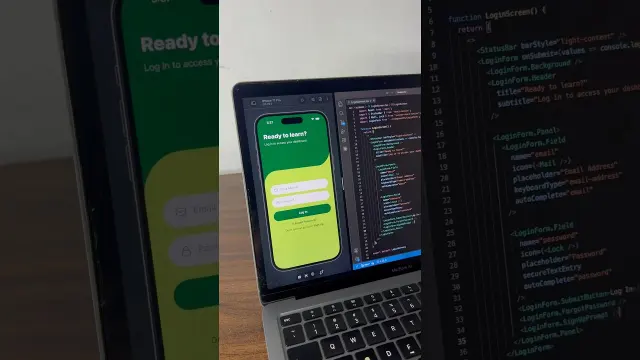
 Mobile App Login User Interface Inspiration
#iOS
1 ideas
Mobile App Login User Interface Inspiration
Get new #iOS ideas by email
Every Thursday: the week's best ideas, with the newest from #iOS.
Related tags
iOS: Apple’s Mobile Operating System
iOS is the mobile operating system used on Apple’s iPhone family, and it also shares much of its design language with other Apple devices. It is built around touch interaction, simple navigation, and a tightly integrated ecosystem of apps, services, and settings. For many people, iOS is the software that shapes how they communicate, browse, photograph, shop, and manage everyday tasks on a phone.
What iOS is
At its core, iOS is the software that runs the device and lets you use apps, connect to the internet, make calls, send messages, take photos, and control the phone’s functions. It provides the home screen, notifications, permissions, accessibility tools, and the overall look and feel of the device.
iOS is known for its clean interface, consistent gestures, and emphasis on security and privacy controls. Because it is designed for a limited range of devices, it tends to feel unified from one phone to another, which can make it easier to learn than some more open systems.
Read more
Main uses and strengths
People use iOS for both everyday tasks and more specialized work. Common uses include:
- communication through calls, messages, email, and video chat
- browsing the web and using social apps
- photography, video recording, and media editing
- organization with calendars, reminders, notes, and files
- shopping, banking, navigation, and entertainment
- creative and work apps for design, writing, productivity, and learning
A major strength of iOS is how smoothly its features fit together. Apps can share content through built-in menus, notifications are centralized, and many settings are easy to find once you know the basic layout.
Design and interface style
The iOS interface is usually described as minimal, visual, and direct. It uses icons, cards, menus, and gestures rather than complicated layered controls. Common design patterns include:
- a home screen with app icons and widgets
- swipe gestures for navigation and multitasking
- app-specific interfaces that still follow a shared style
- a focus on readable text, clear spacing, and simple controls
For app designers, iOS is often appreciated for its well-defined patterns. If you are creating a login screen, for example, it helps to keep fields clear, labels short, actions obvious, and the path to sign in as simple as possible.
What beginners should know
If you are new to iOS, start by learning a few essentials:
- how to move between the home screen, apps, and settings
- how to manage notifications and permissions
- how to update the system and your apps
- how to use Apple’s built-in accessibility options if you need them
- how to organize apps into folders or use search to find them quickly
It also helps to get familiar with privacy settings. iOS gives you control over camera, microphone, location, contacts, and other permissions, so it is worth reviewing what each app can access.
Practical tips
- Keep your home screen simple so the apps you use most are easy to reach.
- Review app permissions from time to time.
- Use strong passcodes and built-in security features.
- Learn a few core gestures, since they save time every day.
- If you design for iOS, favor clarity, restraint, and familiar patterns over visual clutter.
iOS is successful because it balances ease of use with depth. Once you understand its basic structure, it becomes a flexible and comfortable environment for both everyday life and app design.
#iOS: frequently asked questions
What exactly is iOS, and do I need to learn anything special to use it?
iOS is the software that runs the phone itself, giving you the home screen, notifications, permissions and the overall look and feel, while apps sit on top of it. You don't need any technical knowledge to use it, because the interface is built around touch, simple gestures and a consistent layout from one screen to the next. Learning a handful of gestures and where settings live is usually enough to feel at home.
How should a complete beginner get started?
Begin with the basics: moving between the home screen, apps and settings, then sorting out notifications and permissions so the phone isn't constantly interrupting you. Once that feels natural, learn search and folders to keep the home screen tidy, and try the built-in accessibility options if any of them make the screen easier to read or navigate. Take it in small steps rather than trying to configure everything at once.
How do I choose between the available options when picking a device or setup?
Because the software is designed for a limited range of devices, the experience tends to feel unified, so the choice usually comes down to size, storage and camera needs rather than learning a different system. Think about how you actually use a phone — messaging, photos, work apps, reading — and let that guide you instead of chasing the most features. Whichever you pick, the interface and core gestures will behave the same way.
How do I take care of it day to day?
Keep the system and your apps updated, use a strong passcode with the built-in security features, and review app permissions from time to time so nothing has access it doesn't need. A simple home screen with your most-used apps within easy reach also saves time every day. Little habits like these keep the phone feeling fast, private and predictable.
What mistakes do newcomers usually make?
The most common one is granting every permission request without thinking, which leaves apps with access to the camera, microphone, location or contacts they don't really need. Another is cluttering the home screen with everything installed, which makes the apps you actually use harder to find. A third is ignoring gestures and settings entirely, so people keep doing things the slow way long after a swipe would have done it.
How does this affect designing an app screen, such as a login?
The style rewards clarity and restraint: short labels, obvious fields and a sign-in path with as few steps as possible fit naturally with the platform's familiar patterns. Designers tend to prefer it because the conventions are well defined, so you can lean on shared expectations instead of inventing new controls. Keep the layout readable, the spacing generous and the main action unmistakable.
Videos come from YouTube and posts from Instagram; titles and summaries are our own. All rights belong to their creators.