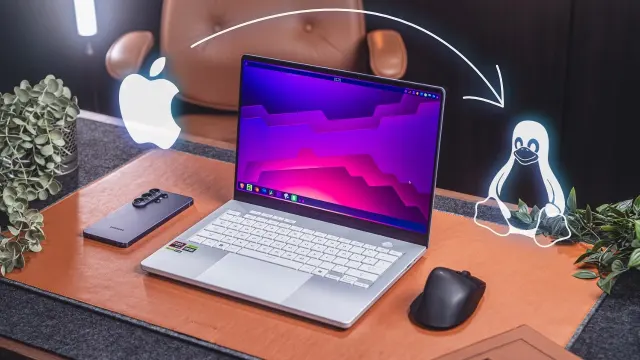
 Mac to Linux: Testing Linux for a Full Creative Workflow
#MacOS
1 ideas
Mac to Linux: Testing Linux for a Full Creative Workflow
Get new #MacOS ideas by email
Every Thursday: the week's best ideas, with the newest from #MacOS.
Related tags
macOS: A Friendly Guide to Apple's Desktop System
macOS is the operating system that runs on Apple's desktop and laptop computers. It is the layer of software between you and the machine: it draws the screen, manages your files, connects to the internet and lets every program you use do its work. Where a computer's hardware is the body, the operating system is the temperament — the thing that decides how windows behave, how documents are stored, and what happens when you plug something in.
Where it comes from
The Macintosh line appeared in the 1980s and helped make the mouse, icons and overlapping windows ordinary. In the early 2000s Apple replaced the original system with a new one built on a Unix foundation, which is the direct ancestor of the macOS we use today. That lineage shows in its character: a friendly, visual surface over a sturdy, technical base. The name itself is simply a shortening of "Macintosh Operating System".
What people use it for
Read more
Because Macs are common in studios and small workshops, macOS has a long association with creative work — photography, illustration, layout, music, video, writing. But it is just as often the family computer: recipe collections, wedding planning spreadsheets, craft tutorials, photo albums, homework, video calls with relatives. The system is deliberately unobtrusive, so the work stays in the foreground.
The parts worth knowing
- The menu bar across the top belongs to whichever program is active; its contents change as you switch.
- The dock at the bottom holds the programs you use most, plus a shortcut to open applications.
- The file browser is the map of everything on the machine, organised into folders you can nest, rename and search.
- A system-wide search opens with a keystroke and finds files, programs and settings by name.
- Views that let you spread windows over several desktops help separate work from everything else.
- System settings gather the controls for sound, displays, accounts, privacy and updates in one place.
If you are just starting
The single biggest adjustment for newcomers is the keyboard: the Command key takes the place of the Control key in most shortcuts, and copying, pasting, saving and closing follow that pattern. Secondary-clicking — a two-finger tap on a trackpad — reveals the contextual menu where most hidden options live. Dragging files onto a program's icon to open them works almost everywhere, and closing a window is not the same as quitting the program.
Small habits that pay off
- Keep a backup running on an external drive, and test that you can restore from it before you need to.
- Give files names you would actually search for, and sort big collections into a shallow set of folders rather than a deep maze.
- Watch your free disk space; any computer slows down when it runs out.
- Install software only from developers you trust, and accept updates when they are offered.
- Learn three shortcuts well rather than thirty badly. Fluency grows from repetition, not from memorising a list.
None of this requires technical confidence. macOS rewards the curious beginner: poke around, undo what you dislike, and the system quickly starts to feel like your own desk rather than someone else's.
#MacOS: frequently asked questions
What do I actually need before I start using macOS?
You need a Mac, a power connection and a bit of patience — nothing else is required to begin. Set up a user account, connect to the internet and take a few minutes to look around the desktop before installing anything. Adding an external drive for backups early saves a lot of grief later.
Which kind of Mac should I choose if I mostly write, browse and edit photos?
Match the machine to the work you actually do rather than to the most impressive one available. A laptop suits people who move between rooms or travel, while a desktop with a larger screen is easier on the eyes for long writing or photo sessions. If you can, try the keyboard and trackpad in person first, since that is what you will touch every day.
What is the first thing a newcomer should learn?
The keyboard is the biggest adjustment: the Command key replaces Control in most shortcuts, so copy, paste, save and close all follow that pattern. Learn a couple of shortcuts properly and the rest come naturally through repetition. Also try a two-finger tap on the trackpad, which opens the contextual menu where many hidden options live.
How do I take care of the computer so it keeps running smoothly?
Keep a backup on an external drive running, and check now and then that you can actually restore from it. Watch your free disk space, since everything slows down when it fills up, and accept updates when they are offered. Install software only from developers you recognise and trust.
What are common mistakes beginners make?
Closing a window and assuming the program has quit is the classic one — the app keeps running until you quit it properly. Another is burying files in a deep maze of nested folders instead of a shallow set with names you would actually search for. Many people also try to memorise a long list of shortcuts instead of getting fluent in a few.
Can I use it for creative projects as well as everyday family things?
Yes — the same machine handles photography, illustration, layout, music and video alongside recipe collections, craft tutorials, photo albums and video calls with relatives. The system is designed to stay out of the way so the work stays in front of you. Spread your windows over several desktops if you want to keep a project separate from everything else.
Videos come from YouTube and posts from Instagram; titles and summaries are our own. All rights belong to their creators.