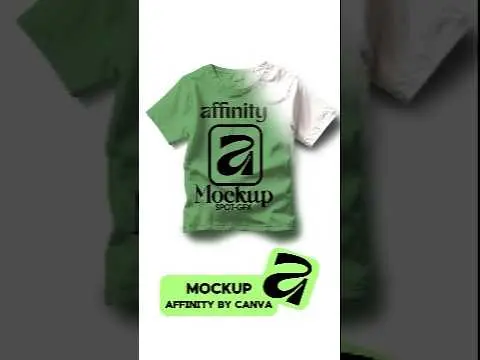
 Easy T-Shirt Mockup Design in Affinity Using a Simple Workflow
#Affinity Designer
1 ideas
Easy T-Shirt Mockup Design in Affinity Using a Simple Workflow
Get new #Affinity Designer ideas by email
Every Thursday: the week's best ideas, with the newest from #Affinity Designer.
Related tags
Affinity Designer Guide for Vector Work
Affinity Designer is a vector design application used for creating artwork that needs clean lines, crisp shapes, and easy scaling. It is commonly used for logos, icons, illustrations, branding elements, layouts, and simple mockups. Because vector artwork is made from points and curves rather than pixels, it can be resized without losing sharpness, which makes it especially useful for print and digital design.
At its core, Affinity Designer is built around two main approaches to image-making: vector and raster. Vector work is best for shapes, lettering, diagrams, and designs that need to stay sharp at any size. Raster work is useful when you want to paint, texture, or edit pixel-based details. Many designers move between both in the same project, depending on what they need to create.
What you can make with it
Affinity Designer is a flexible tool for both professional and personal projects. You can use it for:
- logos and wordmarks
- icons and interface elements
- illustrations and pattern work
- posters, flyers, and social graphics
- packaging concepts and label design
- mockups and presentation artwork
Read more
It is especially helpful when you want precise control over shape, color, and spacing. If you enjoy clean digital drawing, it can feel very natural.
Main tools and techniques
A good way to think about Affinity Designer is as a set of tools for drawing with structure. Some of the most important skills include:
- using the Pen tool to draw smooth curves and custom shapes
- combining shapes with boolean operations such as add, subtract, or intersect
- adjusting nodes to refine curves and edges
- working with fills, strokes, and line styles
- using layers to keep your work organized
- creating reusable symbols, assets, or styles when a design repeats
For illustration, many people start with simple shapes and build up detail gradually. For layout work, alignment and spacing matter just as much as color or style. For mockups, careful positioning and perspective help the design feel believable.
Styles and approaches
Affinity Designer can support many visual styles, from minimal flat graphics to detailed decorative artwork. Some common approaches are:
- flat vector design with simple fills and strong shapes
- line art and outline illustrations
- geometric compositions
- hand-drawn-looking artwork made with controlled curves
- mixed vector and raster pieces with texture or shading
There is no single right way to use it. The best approach depends on whether you want precision, softness, simplicity, or more expressive detail.
What beginners should know
If you are new to vector design, start small. Learn the basics of shapes, the Pen tool, and layering before trying complex projects. It also helps to zoom in and out often, because vector work can look very different at different sizes.
A few practical habits make the process easier:
- keep your layers named and grouped
- use guides and alignment tools to stay tidy
- build from simple forms before adding detail
- save versions as you work, especially on larger projects
- test your design at different sizes to check clarity
Affinity Designer rewards patience. Once you understand how shapes and curves behave, you can move quickly and make polished artwork with a lot of control.
#Affinity Designer: frequently asked questions
What is Affinity Designer actually used for?
It is a vector design application for artwork that needs clean lines and shapes that stay crisp at any size, such as logos, icons, illustrations, and branding elements. People also use it for posters, social graphics, packaging concepts, and presentation mockups. Vector artwork is built from points and curves rather than pixels, so it can be resized freely without losing sharpness.
Do I need to know how to draw to get started in Affinity Designer?
Not really, because most designs are built from simple shapes that you combine and refine rather than from freehand drawing. The Pen tool, boolean operations like add and subtract, and node editing give you precise control over curves even if your drawing skills are modest. If you enjoy clean digital drawing, the structured approach tends to feel natural quickly.
Should I work in vector or raster for my project?
Choose vector for anything that must stay sharp at any size, like shapes, lettering, diagrams, and logos. Switch to raster when you want to paint, add texture, or adjust pixel-level detail, which is common in shading and mixed media pieces. Many people move between both within a single project, depending on the effect they want.
How should a beginner start learning Affinity Designer?
Start small and learn shapes, the Pen tool, and layering before taking on complex artwork. Zoom in and out often, since vector work can look very different at different sizes, and build from simple forms before adding detail. Naming and grouping layers early makes everything easier as the project grows.
What mistakes do people commonly make in Affinity Designer?
A frequent one is adding fine detail too early, which makes shapes hard to adjust later. Another is leaving layers unnamed and ungrouped, so reorganizing or editing part of a design becomes confusing. Testing your artwork at different sizes before finishing is a simple habit that catches clarity problems.
How do I create a t-shirt mockup in Affinity Designer?
A straightforward workflow is to place your artwork on a shirt shape and then position it carefully so the design sits believably on the fabric. Perspective and placement matter more than fancy effects, since a slightly off angle instantly makes a mockup look flat. Keep the design and the mockup on separate layers so you can adjust or reuse either one later.
Videos come from YouTube and posts from Instagram; titles and summaries are our own. All rights belong to their creators.