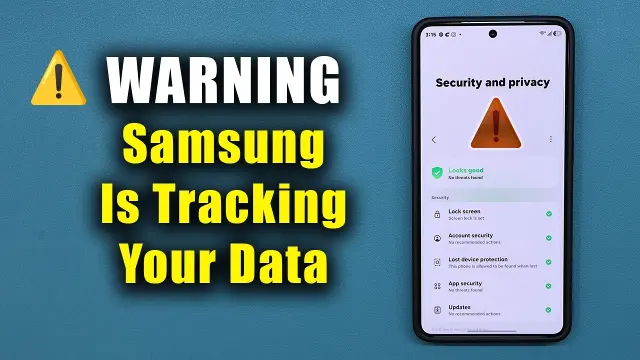
 How to Stop Your Samsung Phone from Sharing Sensitive Data
#Device Security
1 ideas
How to Stop Your Samsung Phone from Sharing Sensitive Data
Get new #Device Security ideas by email
Every Thursday: the week's best ideas, with the newest from #Device Security.
Related tags
Device Security: A Simple Guide to Protecting Your Phones and Laptops
Device security is the everyday practice of keeping the phones, tablets, laptops and smart devices in your life safe from theft, misuse and unwanted access. It is not one product you install and forget about; it is a set of habits and settings that work together. Most of it takes only a few minutes to set up, and once the basics are in place your devices quietly protect themselves in the background.
The topic sits at the meeting point of two worlds: the technology built into a device and the choices you make while using it. A phone can have the strongest encryption available and still be exposed if the same short PIN unlocks everything you own, or if an app is given access to your photos for no good reason. Understanding both halves is what makes the difference.
Why it matters more than it used to
Our devices hold a surprising amount of our lives: messages, photographs, banking apps, work files, health notes and the email address that can reset every other account. That concentration is convenient, and it is exactly what makes a lost or compromised device so disruptive. Treating your phone with the same care you would give a wallet full of cards is a reasonable starting point, but the digital version needs a little more thought, because a thief does not need to be in the same room to get in.
Read more
The foundations worth setting up first
- Lock your device with a PIN, password, pattern or biometric unlock, and avoid obvious choices like a birth year or a repeated digit.
- Turn on automatic updates for the operating system and your apps. Updates frequently close security gaps that are already known to attackers.
- Enable the built-in tools that help you find, lock or erase a lost device, and check that they are actually switched on.
- Use a password manager and let it generate long, unique passwords. Reusing one password across accounts is one of the most common weak points.
- Switch on two-factor authentication wherever it is offered, so a stolen password alone is not enough to get in.
Habits that keep you safe day to day
Review app permissions now and then. A torch app does not need your contacts, and a photo editor does not need your location all the time. Remove apps you no longer use, since an abandoned app can keep access you have forgotten about.
Be careful with public Wi-Fi for anything sensitive, and prefer your mobile data or a trusted network for banking and email. Treat unexpected messages with links or attachments with suspicion, even when they appear to come from someone you know; it is fine to verify through another channel before tapping.
Back up what matters, whether to cloud storage or a computer at home. Backups are not strictly security, but they are what turns a bad day into an inconvenience rather than a loss.
Where to begin
Start with the lock screen and updates, then work through your accounts one at a time. You do not need to do everything this week. Small, steady improvements compound, and a device that is reasonably protected and regularly looked after is far safer than one that was set up perfectly years ago and never touched since.
#Device Security: frequently asked questions
How do I actually get started with device security without feeling overwhelmed?
Begin with the lock screen and automatic updates, since those two close the most obvious gaps and take only minutes. Then work through your account… trying to fix everything in a single evening. Steady small improvements add up, and a device that is looked after regularly beats one that was set up once and never revisited.
What do I need in order to protect my phone, tablet or laptop properly?
Nothing beyond what the device already gives you: a strong unlock method, updates switched on, and the built-in tools for finding, locking or erasing a lost device. Beyond that, a password manager and an extra verification step at login do most of the heavy lifting. The rest is habit rather than equipment.
Which kind of protection should I choose when there are so many options?
Choose whatever closes a gap you actually have, and prefer the protections already built into your device over add-ons you have to maintain. A password manager earns its place early because reused passwords are one of the most common ways accounts fall open. Anything promising total safety from a single setting is worth a sceptical second look.
Do I need to review app permissions and settings regularly?
Yes, and occasionally is enough. Apps accumulate access over time, so check what each one can reach and take away permissions that make no sense for what it does — a simple tool rarely needs your contacts or constant location. Deleting apps you have stopped using is just as important, since forgotten apps can keep access you no longer remember granting.
What are the common mistakes people make with device security?
The usual ones are a short, guessable unlock code, the same password everywhere, and assuming that being careful is the same as being set up. Another is skipping backups, which are not security itself but are what turns a stolen or broken device into an inconvenience instead of a loss. Trusting unexpected messages with links, even from known contacts, is a close runner-up.
Is it safe to use public Wi-Fi for things like banking or email?
Treat public networks with caution for anything sensitive, and prefer your mobile data or a network you trust for banking and personal email. If you have no alternative, avoid logging into accounts you would hate to lose access to. Checking a message through a different channel before tapping a link is a sensible habit wherever you are.
Videos come from YouTube and posts from Instagram; titles and summaries are our own. All rights belong to their creators.