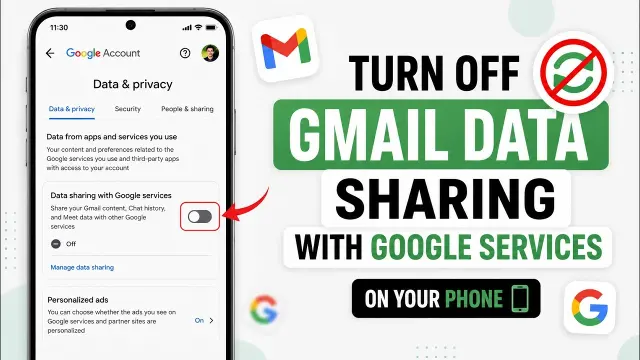
 How to Turn Off Gmail Data Sharing With Google Services
#Gmail
1 ideas
How to Turn Off Gmail Data Sharing With Google Services
Get new #Gmail ideas by email
Every Thursday: the week's best ideas, with the newest from #Gmail.
Related tags
Gmail: A Practical Guide to Calmer Email
Gmail is a free webmail service from Google. You read it in a browser or in its mobile apps, and your messages live in a Google account rather than on your own computer, which is why the same inbox appears whether you open it on a laptop, a phone or a tablet. It began as an invite-only experiment and grew into one of the most widely used email services in the world, and it is also the mail app behind many Android phones and a common choice for small businesses.
What makes it different
Where most email programs ask you to file messages into folders, Gmail prefers labels. A message can carry several labels at once — Work, Family, Receipts — so nothing has to be forced into a single place. Conversations are grouped into threads, which means replies to the same subject stay together instead of scattering down your list. And search is treated as the main way to find things: the search box is the heart of the interface, and it understands small commands like from:, to:, subject:, has:attachment or a date range.
The parts you will actually use
Read more
Filters are rules you write once: anything arriving from a given address, or containing a given word, can be labelled, starred, marked important or moved out of the inbox automatically. Stars and the Important marker let you come back to something later without leaving it unread. The inbox can be split into categories such as Primary, Social and Promotions, which keeps newsletters away from real messages. Snooze hides a message until a chosen time, and Schedule Send holds a draft until a moment you pick.
Getting started well
Set up two-step verification on your account before anything else; it matters far more than any tidying trick. Then choose a few labels that match your actual life and let filters do the sorting, rather than filing by hand. Write a short signature, add contacts you write to often, and learn three or four search operators — they will save you more time than any folder system.
Habits that keep it calm
- Unsubscribe from anything you have not read in months, rather than deleting it again and again.
- Turn on filters for recurring mail so it never reaches the inbox in the first place.
- Check the full sender address on anything that asks for a password or payment, and never enter details after following a link in an unexpected message.
- Archive instead of deleting what you may need; the search box will find it later.
- Empty the spam folder occasionally, in case a real message was caught by mistake.
A word on limits
Storage is shared across your Google account, so mail, photos and files compete for the same space. If you approach the limit, sort by size and remove the largest attachments first.
Used with a little structure, Gmail stops being a pile of unread mail and becomes a reliable record of what you agreed to and what still needs an answer.
#Gmail: frequently asked questions
What do I need to start using Gmail?
You need a Google account, since the inbox lives with that account rather than on your own device, which is why the same mail appears on a laptop, phone or tablet. After signing in you can read it in a browser or install the mobile app. The first thing worth doing is switching on an extra verification step so a stolen password alone is not enough to get in.
Should I use folders or labels to organize my mail?
Labels suit Gmail better than folders, because one message can carry several at once and nothing has to be forced into a single place. Pick a handful that match your real life and let rules sort incoming mail for you instead of filing by hand. Messages can also be archived rather than deleted, since search will find them again later.
How do I find an old message I can no longer see?
Search is the main way to locate things here, so start in the search box rather than scrolling. You can narrow results by sender, recipient, subject, whether a file is attached, or a range of dates. Learning a few of these small commands pays off far more than building an elaborate folder system.
What are the most common mistakes people make with their inbox?
Deleting unwanted mail over and over instead of unsubscribing from it is the usual one, and it never fixes the cause. Another is trusting a message that asks for a password or payment without checking the full sender address, especially when it arrives unexpectedly and invites you to follow a link. A third is hoarding large attachments, when removing the biggest ones frees space fastest because storage is shared across the whole account.
How can I keep my inbox from filling up with newsletters and notifications?
Set up rules so recurring mail is labelled, starred or moved out of the inbox automatically before you ever see it. Splitting the inbox into categories keeps promotions and social updates away from real messages. A short signature and a few saved contacts also save time on the mail you send most often.
What is the best way to deal with a message that looks suspicious?
Open the full sender address before doing anything, since a display name alone proves nothing. Never enter details after following a link in a message you were not expecting, even if it looks like it comes from a service you use. If a genuine message ends up in the spam folder, clear that folder out now and then so nothing important stays buried.
Videos come from YouTube and posts from Instagram; titles and summaries are our own. All rights belong to their creators.