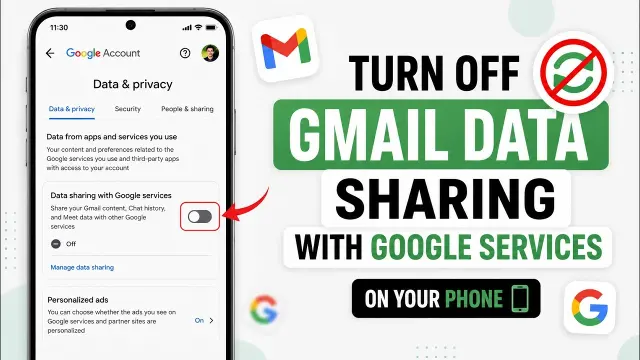
 How to Turn Off Gmail Data Sharing With Google Services
#Google Account
1 ideas
How to Turn Off Gmail Data Sharing With Google Services
Get new #Google Account ideas by email
Every Thursday: the week's best ideas, with the newest from #Google Account.
Related tags
What a Google Account Is and How to Look After It
A Google Account is a single identity that unlocks a whole family of services from one company: mail, cloud storage, maps, photos, video, calendars, documents and more. Instead of creating a separate login for each one, you sign in once and everything recognises you. That convenience is the point of it — and also the reason it deserves a little care.
Where it comes from
The account began as a way to use a single mail service, and grew as more products were attached to the same login. Today it works as a general identity layer: it can sign you in to third-party apps and websites, keep your files in sync across devices, and remember preferences so that a phone, tablet and computer all behave the same way.
What it is used for
Read more
Most people use theirs for a handful of everyday things:
- Sending and receiving mail, and storing contacts.
- Keeping photos, documents and files backed up and available on several devices.
- Syncing calendars, notes and reminders between phone and computer.
- Signing in to other apps quickly, without a new password each time.
- Watching videos, listening to music, and using maps or translation tools.
- Sharing documents or photo albums with family and colleagues.
The parts worth understanding
Beginners tend to treat the account as one thing, but it is really a set of separate areas. There is your personal profile — name, photo, and the basic details others may see. There is storage, which is shared across services rather than given separately to each, so a large photo library can fill space you thought belonged to your mail. There are privacy controls that decide what is saved and what is used to personalise results and recommendations. And there is security: password, recovery details, and the optional extra verification step that asks for a second confirmation when you sign in on a new device.
Practical habits for beginners
- Choose a password you use nowhere else, long rather than complicated, and consider a password manager to keep track of it.
- Set up recovery information — a backup contact method — before you need it. Losing access is far more painful than setting it up.
- Turn on the extra verification step. It is the single most effective protection for an account holding years of mail and photos.
- Review which apps and devices have permission to use your account, and remove the ones you no longer recognise or need.
- Look through the privacy settings at least once, calmly, and decide what you are comfortable with rather than accepting defaults by accident.
- Check your storage from time to time; deleting duplicate photos and old large attachments is usually enough.
A calm approach
You do not need to master every setting. Take it in stages: secure the login first, then recovery options, then privacy, then storage. Done in that order, a Google Account becomes what it is meant to be — a quiet, reliable key to the tools you use every day, rather than something you worry about.
#Google Account: frequently asked questions
How do I start a Google Account?
You sign up with a few basic details, pick a username and a password, and that one login then opens mail, storage, maps, photos and the rest. There is nothing to install — a browser is enough, and you can add the same account to a phone or tablet afterwards so everything stays in sync.
What should I have ready before I create one?
A contact method that works — an existing email address or a phone number — for confirming it is you, plus a password you have not used anywhere else. It is also worth lining up a second, backup recovery method at the start, because adding one is simple now and much harder once you are locked out.
Is one account enough, or should I have more than one?
Plenty of people run a personal account for family, photos and everyday mail, and a separate one when they want a clean space for a shared project or a group. If you use just one, keep in mind that storage is shared across services, so a large photo library and your mail draw on the same pool.
How do I look after it once it is set up?
Secure the login first, add recovery details, then work through privacy settings and finally your storage. Turning on the extra verification step is the single most useful habit, and reviewing which apps and devices still have access — removing the ones you no longer recognise — keeps that protection meaningful.
What do beginners most often get wrong?
Reusing an old password, putting off recovery setup, and clicking through privacy screens without deciding anything are the usual ones. Another common slip is ignoring storage until uploads quietly stop working, which is easily avoided by clearing duplicates and old large attachments now and then.
How do I control what my account shares with other services?
Your privacy and connected-apps settings show what is being saved and what is used to tailor results and recommendations, and each part can be switched off on its own. Turning off data sharing between the mail service and the other tools is one of the changes people make most often; nothing stops working, the suggestions simply become less personalised.
Videos come from YouTube and posts from Instagram; titles and summaries are our own. All rights belong to their creators.