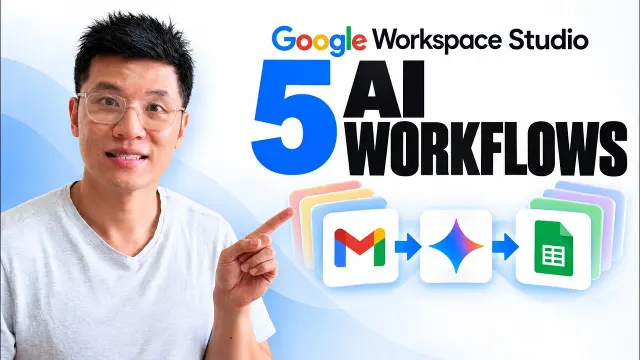
 Google Workspace Studio Tutorial: Five Copyable AI Workflows
#Google Apps
1 ideas
Google Workspace Studio Tutorial: Five Copyable AI Workflows
Get new #Google Apps ideas by email
Every Thursday: the week's best ideas, with the newest from #Google Apps.
Related tags
Google Apps: A Practical Guide to the Suite
What Google Apps are
Google Apps is a common name for the collection of Google’s web-based productivity tools used for writing, sharing, organising, and communicating online. The suite grew around everyday tasks such as email, document editing, calendars, cloud storage, video meetings, and simple team collaboration. In practice, many people use it at home, at school, and at work because the tools are easy to access from a browser or a mobile device.
At its core, the appeal of Google Apps is that your files and activity can stay connected in one account. You can start a document, share it with others, comment together, attach files from cloud storage, and move between tools without switching systems constantly.
Common tools and what they do
Read more
The best-known apps in the suite include:
- Gmail for email
- Google Docs for writing documents
- Google Sheets for spreadsheets and lists
- Google Slides for presentations
- Google Drive for storing and sharing files
- Google Calendar for scheduling and reminders
- Google Meet for video calls
- Google Forms for surveys and simple data collection
There are also related tools for notes, tasks, sites, and other workspace needs. Depending on how you use the suite, you may rely on only a few of them or move between many during the day.
How people use Google Apps
For personal use, Google Apps can help you keep household schedules, save important documents, manage travel details, or build simple lists and budgets. For school, they are often used for assignments, shared projects, note-taking, and presentations. In work settings, they are especially useful for collaboration because several people can edit the same file, leave comments, and track changes without sending repeated file versions back and forth.
A major strength of the suite is that it supports both solo work and shared work. You can draft privately, then invite others when you are ready. This makes it useful for planning, editing, review, and coordination.
Main styles of working
Google Apps can be used in a few different ways:
- As a personal productivity system, with docs, calendars, and storage kept in one place
- As a collaboration platform, where teams share files and comment in real time
- As a lightweight office toolkit, for everyday writing, numbers, and presentations
- As a mobile companion, when you need access to files and messages away from a computer
Tips for beginners
If you are just starting out, keep it simple:
- Learn the basics of Drive first, since it connects many of the other tools
- Use clear file names and folders so you can find things later
- Share only with the people who need access
- Check comments and version history before making major changes
- Save important files in a structured way instead of scattering them across your account
It also helps to get comfortable with permissions. Some files are view-only, others allow comments or editing, and that difference matters when you are working with others.
A few practical habits
Try to keep one main folder system, use Calendar for deadlines, and turn long notes or plans into a document rather than leaving them spread across messages. Small habits like these make the suite easier to manage and much more useful over time.
#Google Apps: frequently asked questions
How do I get started with Google Apps?
You begin by creating one free account, which then gives you access to the whole suite from a browser or a phone. Start with the cloud storage tool, since it holds your files and connects to the writing, spreadsheet and presentation tools. From there, add the calendar and email tools once you feel comfortable moving around.
Do I need to install software to use these apps?
No installation is required — everything runs in a web browser once you sign in. Optional mobile apps let you reach your files and messages away from a computer, and some tools offer limited offline use if you set it up in advance. That makes the suite handy on shared or borrowed devices, since nothing has to be downloaded permanently.
Which apps should I choose for everyday tasks?
Pick by task rather than trying to learn everything at once: writing goes in the document editor, lists and simple budgets in the spreadsheet tool, and deadlines in the calendar. Most people end up relying on a small handful of tools daily and only dip into the rest occasionally. If you mainly work on the move, favour the tools that sync well to your phone.
How do I share files without giving too much access?
Each file has its own permission setting — view-only, comment, or edit — and choosing the right one matters when others are involved. Share only with the people who actually need the file, and check the setting again before sending a link to a wider group. If you are unsure, start with view-only and raise access later.
Can several people work on the same file at once?
Yes, real-time collaboration is the main strength of the suite: multiple people can edit one file, leave comments, and see changes as they happen. Version history lets you look back at earlier drafts if something goes wrong. This replaces the old habit of emailing copies back and forth, which quickly creates confusion about which version is current.
What mistakes do beginners usually make?
The most common ones are vague file names, folders scattered across the account, and sharing links more widely than intended. Another frequent slip is leaving plans and notes buried in messages instead of turning them into a proper document. A single main folder structure and clear names solve most of these problems from the start.
Videos come from YouTube and posts from Instagram; titles and summaries are our own. All rights belong to their creators.