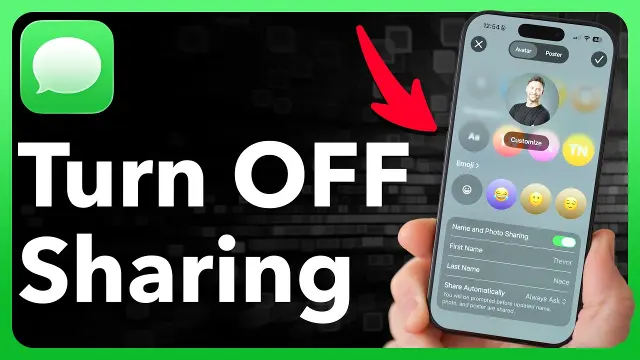
Protect Your Privacy By Turning Off Hidden iMessage Data Sharing Settings
Learn how to turn off specific iPhone settings to prevent your sent and received text messages from leaking personal data.
YouTube · Trevor Nace · 22 January 2026 Watch on YouTube
Tried this idea? Show how yours turned out.
I made thisHow to do it
What you need
- iPhone
- Messages app
- Name and Photo Sharing setting
Step by step
- Open Settings on your iPhone and go to Messages.
- Tap Name and Photo Sharing.
- Turn off the Name and Photo Sharing toggle at the top.
- Confirm the toggle shows off so your name and photo are no longer shared.
Tips
- If you don't want to turn sharing off entirely, leave it on but set Share Automatically to Always Ask so you approve each new contact.
- Recheck this screen after iOS updates, since setting layouts and defaults can shift.
Written by Tagrazzi from the original's description and photo.
The title and summary are written by Tagrazzi; the video belongs to its creator and plays from YouTube.






Comments (0)
No comments yet. Be the first to comment.
Sign in to write a comment.