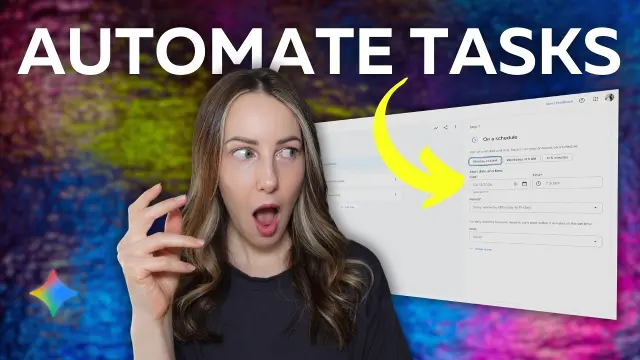
 Inside Google Workspace Studio: How to Build Custom Workflows
#Tech Tips
1 ideas
Inside Google Workspace Studio: How to Build Custom Workflows
Get new #Tech Tips ideas by email
Every Thursday: the week's best ideas, with the newest from #Tech Tips.
Related tags
Practical Tech Tips for Everyday Use
What tech tips are for
Tech tips are small, practical pieces of advice that help you use digital devices and services more confidently. They can cover computers, phones, tablets, apps, email, storage, passwords, file sharing, and everyday troubleshooting. The aim is not to make technology feel complicated, but to help you use it more smoothly, save time, and avoid common problems.
Good tech advice is usually simple and adaptable. It may show you how to organize files, protect your accounts, speed up your device, or choose better settings for the way you work. Whether you are a beginner or a regular user, the most useful tips are the ones that make everyday tasks easier without adding extra steps.
Common kinds of tech tips
Read more
Some tech tips focus on productivity. These include using shortcuts, creating folders, naming files clearly, syncing notes across devices, and learning a few helpful settings in your most-used apps. Small habits like these can make a big difference over time.
Other tips are about security and privacy. A strong password, two-factor authentication, regular updates, and careful app permissions all help protect your accounts and personal information. It also helps to be cautious with unknown links, attachments, and messages that ask for sensitive details.
Troubleshooting is another major area. Many common issues can be improved by restarting a device, checking internet connections, closing unused apps, clearing space, or updating software. If a problem keeps returning, it is often useful to change one thing at a time so you can see what helps.
What beginners should know
If you are new to tech advice, start with the basics that matter most in daily life. Learn how to back up important files, update your software, and recover an account if you forget a password. Get comfortable with your device settings, especially sound, notifications, storage, and privacy options.
It also helps to keep things simple. You do not need to use every feature available. Instead, focus on the tools that match your routine. A few well-chosen habits are often more helpful than trying to master everything at once.
Practical habits that make technology easier
- Keep your device updated when possible.
- Use unique passwords for important accounts.
- Back up photos, documents, and contact lists regularly.
- Organize files into clear folders with names that make sense to you.
- Remove apps or files you no longer use.
- Check permissions for location, camera, and microphone access.
- Learn a few keyboard shortcuts or gesture controls.
- Restart devices occasionally to help clear minor issues.
A sensible approach
The best tech tips are the ones that feel manageable and repeatable. You do not need advanced knowledge to use technology well. A steady routine, a little organization, and a careful approach to security can make digital life far less frustrating.
If you build good habits gradually, your devices and apps become easier to trust, easier to use, and easier to keep under control.
#Tech Tips: frequently asked questions
How do I get started with tech tips if I'm not confident with devices?
Begin with the handful of habits that affect your daily life most: keeping your software updated, backing up the files you would hate to lose, and knowing how to recover an account if you forget your password. Spend a little time in your device settings learning where sound, notifications, storage and privacy options live, since most everyday fixes start there. You do not need to learn every feature — a few reliable routines will take you further than trying to master everything at once.
What should I have in place before I start changing settings on my phone or computer?
Make sure your important files, photos and contacts are backed up somewhere other than the device itself, so a wrong turn is never permanent. Know your account recovery details, and keep passwords for important accounts unique rather than reused across services. With that safety net in place, you can experiment with settings freely and undo anything that does not suit you.
Which kind of tech tip is worth my time — productivity, security or troubleshooting?
All three matter, but they solve different problems, so pick by what is actually bothering you. If daily tasks feel clunky, productivity habits such as clear folder names, shortcuts and synced notes pay off quickly; if you feel uneasy about accounts, start with passwords, updates and app permissions. Troubleshooting advice is best kept for when something specific goes wrong, rather than as a routine.
How do I keep my devices and accounts in good shape over time?
Treat it as a light routine rather than a project: install updates when they arrive, clear out apps and files you no longer use, and review which apps can reach your location, camera and microphone. Restarting a device now and then clears up a surprising number of small glitches, and a regular backup means a lost or broken device is an inconvenience rather than a disaster. Consistency matters far more than doing a lot in one go.
How can I make my everyday use of apps and files less chaotic?
Name files and folders in a way that makes sense to you rather than trying to guess a perfect system, and keep a small number of clear top-level folders instead of a deep nest. Learn a few shortcuts or gesture controls for the apps you use most — the time saved adds up. Also be selective: removing tools you never open makes the ones you do use much easier to find.
What mistakes do people commonly make with tech advice?
The most common is trying to apply every tip at once, which makes change feel overwhelming and easy to abandon. Another is following advice blindly without checking that it suits your own device and routine, or changing several things together so you cannot tell what actually helped when a problem returns. Finally, many people skip the unglamorous basics — backups and updates — and only think about them after something has gone wrong.
Videos come from YouTube and posts from Instagram; titles and summaries are our own. All rights belong to their creators.