
Affinity on iPad: The Complete Beginner’s Guide
An introduction to using the full version of Affinity natively on the iPad for vector and pixel work.
YouTube · Will Paterson · 2 November 2026 Watch on YouTube
Tried this idea? Show how yours turned out.
I made thisHow to do it
What you need
- iPad
- Affinity app
- stylus or Apple Pencil
Step by step
- Open Affinity on the iPad.
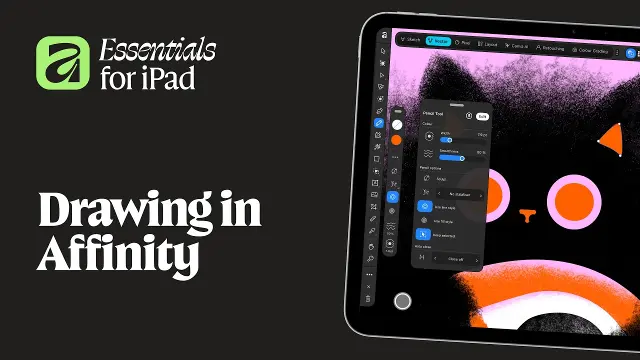
- Choose Sketch Studio, Vector Studio, or Layout.
- Use gestures to navigate the interface.
- Select tools from the toolbars or command wheel.
- Draw or sketch with the stylus.
- Use the Pen Tool and Shape Builder for vector work.
- Duplicate, group, and adjust your artwork.
- Export the file when you are finished.
Tips
- Try the gestures first; they make the workflow faster.
- Use the studio switcher to move between sketching and vector work.
- Customise and search tools to find what you need quickly.
Written by Tagrazzi from the original's description and photo.
The title and summary are written by Tagrazzi; the video belongs to its creator and plays from YouTube.







Comments (0)
No comments yet. Be the first to comment.
Sign in to write a comment.