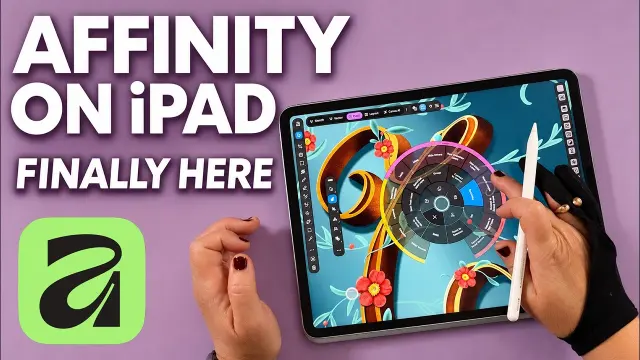
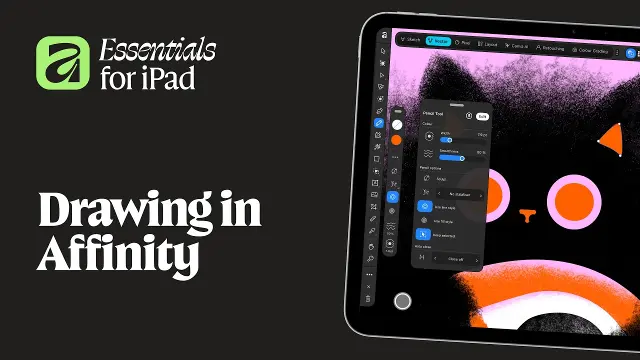
Affinity for iPad Beginner's Guide and Image Trace
An introductory look at workspaces, shortcuts, and image trace features in Affinity for iPad.
YouTube · iPad Calligraphy · 3 November 2026 Watch on YouTube
Tried this idea? Show how yours turned out.
I made thisHow to do it
What you need
- iPad
- Affinity app for iPad
- Free Canva account
- Apple Pencil or stylus
- Procreate artwork to import
- Brush of your choice
Step by step
- Download Affinity for iPad, sign in with your free Canva account and create your first document.
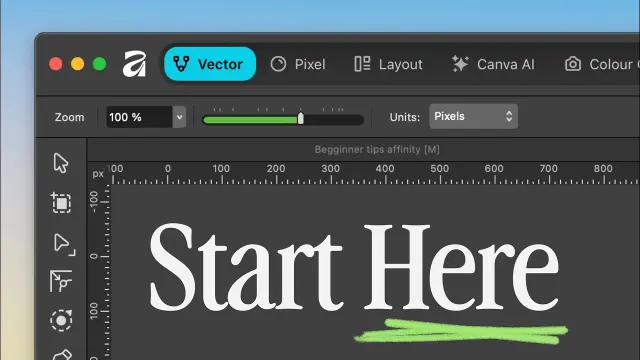
- Switch between studios and customise your toolbar, panels and menus.
- Use Help and Feature Finder to locate tools you can't see.
- Import your Procreate artwork with its layers.
- Set up your brush and turn on stabilisation for smoother lettering.
- Open Image Trace to turn your lettering into editable vectors.
- Use the Command Controller and Quick Menu for shortcuts.
- Save your editable Affinity file, then export a copy with Quick Export to share.
Tips
- Use stabilisation on your brush to keep lettering strokes smoother.
- Feature Finder and Help are the quickest way to find a tool instead of hunting through studios.
- Save the editable Affinity file before exporting a copy, so you keep a version you can still work on.
Written by Tagrazzi from the original's description and photo.
The title and summary are written by Tagrazzi; the video belongs to its creator and plays from YouTube.






Comments (0)
No comments yet. Be the first to comment.
Sign in to write a comment.