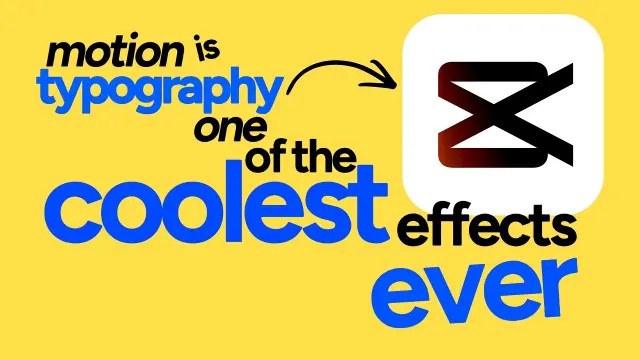
Smooth Motion Typography Animation Tutorial in CapCut
Create smooth kinetic typography animations using text keyframing, motion tracking, and easing curves.
YouTube · Matt Loui · 24 February 2026 Watch on YouTube
Tried this idea? Show how yours turned out.
I made this#capcut #capcutanimation #capcutpc #capcuttutorial
How to do it
What you need
- CapCut
- Text layer
- Keyframes
- Animation curves / easing
- Motion tracking
Step by step
- Add your text to the timeline and style it with a bold font and contrasting colors.
- Enable keyframes on the text layer at the start of the move.
- Move the playhead forward and change the text's position or scale to set the second keyframe.
- Open the animation curve / easing controls and soften the motion so it accelerates and settles smoothly.
- Apply motion tracking if the text should follow a moving subject.
- Repeat keyframes for each word or line so the phrases animate in sequence.
- Preview and adjust the keyframe spacing until the motion feels smooth and intentional.
Tips
- Easing curves are what separate cinematic text from robotic text — smooth the in and out of every keyframe.
- Stagger words and lines instead of animating everything at once so the typography reads in sequence.
- Combine position and scale keyframes for a zoom effect that feels dynamic rather than flat.
Written by Tagrazzi from the original's description and photo.
The title and summary are written by Tagrazzi; the video belongs to its creator and plays from YouTube.


Comments (0)
No comments yet. Be the first to comment.
Sign in to write a comment.