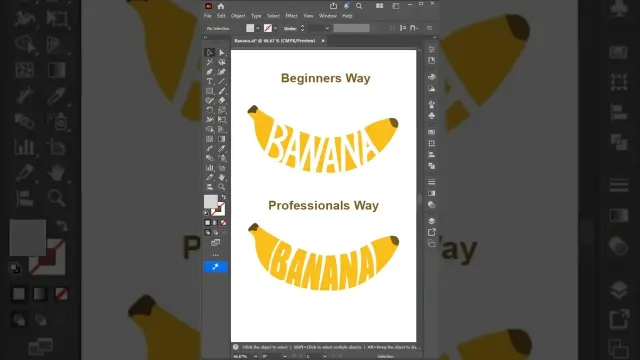
The Best Way to Create Banana Typography in Photoshop
Learn professional techniques in Adobe Photoshop to create realistic banana-themed typography artwork.
YouTube · Trixzee · 24 October 2026 Watch on YouTube
Tried this idea? Show how yours turned out.
I made thisHow to do it
What you need
- Adobe Photoshop
- Banana image or shape
- Type tool
- Warp text / bend options
- Yellow color
Step by step
- Set up a document and place a banana as the base shape.
- Add your word as a text layer over the banana.
- Bend the text with a warp or arc so it follows the banana's curve.
- Scale and position the letters to sit inside the banana's outline.
- Compare the plain result with the curved version side by side to check the shape.
Tips
- Curving the text to match the banana's bend is what separates the polished version from a flat word slapped on top.
- Look at the two stacked examples in the file to see how much the warp changes the result before you commit to a lettering style.
- Keep the banana as a separate layer so you can adjust the text without disturbing it.
Written by Tagrazzi from the original's description and photo.
The title and summary are written by Tagrazzi; the video belongs to its creator and plays from YouTube.









Comments (0)
No comments yet. Be the first to comment.
Sign in to write a comment.