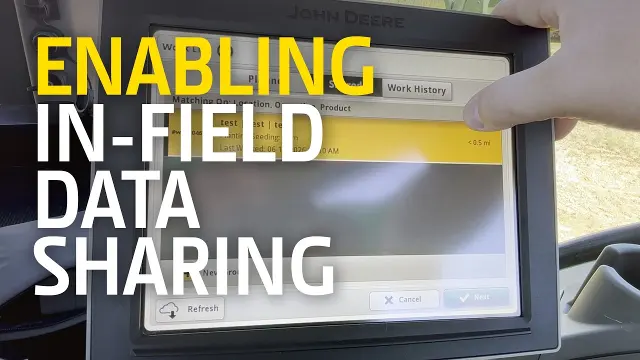
How to Enable In-Field Data Sharing on John Deere Displays
A field demonstration showing how to set up in-field data sharing on John Deere Gen 4 and Gen 5 displays to connect multiple machines.
YouTube · Heritage Tractor · 18 August 2026 Watch on YouTube
Tried this idea? Show how yours turned out.
I made this#JohnDeere #PrecisionAg #HeritageTractor #Gen4 #Gen5 #OperationsCenter #AutoTrac
How to do it
What you need
- John Deere Gen 4 or Gen 5 display
- A second machine with a compatible display
- Workgroup ID
- Saved guidance lines (tracks)
Step by step
- Open the display's sharing settings and enable the in-field data sharing options.
- Find the workgroup ID on the display to identify the group you want to join.
- Go to Work Setup and enter the workgroup ID to join the workgroup manually, or let it connect automatically.
- Confirm the other operators appear as connected and that their coverage maps are showing.
- Select a guidance line and push it to the other machines in the workgroup.
Tips
- All machines in the field need to be in the same workgroup before coverage maps and guidance lines will share.
- Check that each operator shows as connected before you start the pass, so you don't run with stale coverage.
- Sharing guidance lines lets every machine follow the same track instead of re-creating it.
Written by Tagrazzi from the original's description and photo.
The title and summary are written by Tagrazzi; the video belongs to its creator and plays from YouTube.









Comments (0)
No comments yet. Be the first to comment.
Sign in to write a comment.