 Complete Beginner Guide to Mastering Wireframing in Figma
#Figma
30 ideas
Complete Beginner Guide to Mastering Wireframing in Figma
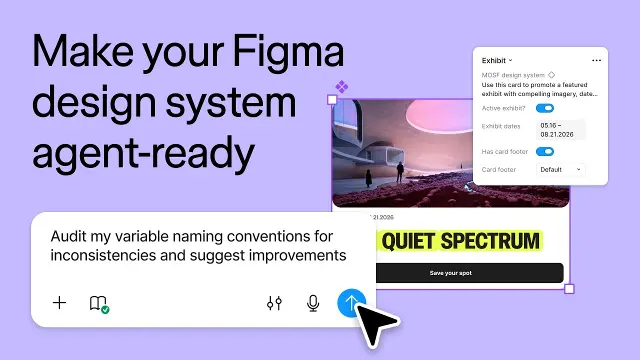 Make Your Figma Design System Agent-Ready
 How Top Designers Gather Design Inspiration and Critique
 Design an App in Figma in Four Minutes
 Complete Guide to Using Artificial Intelligence for UI and UX Design Workflows
 Data Proven Graphic Design Tools Designers Are Using
Get new #Figma ideas by email
Every Thursday: the week's best ideas, with the newest from #Figma.
Collections
Related tags
Figma Guide for Interface and Product Design
What Figma is
Figma is a digital design tool used to create user interfaces, prototypes, wireframes, and design systems. It is especially useful for app, website, and product design because it brings drawing, layout, collaboration, and handoff into one place.
What makes Figma distinctive is that it was built for shared work. Instead of sending files back and forth, you can work in the same design space with other people, leave comments, and review changes together. That makes it a natural fit for teams, but it is also approachable if you are learning design on your own.
What people use it for
Read more
You can use Figma for many kinds of visual and product work, including:
- Sketching early ideas and wireframes
- Designing screens for websites and apps
- Building clickable prototypes
- Creating reusable components and styles
- Organizing design systems
- Sharing work with clients, developers, or teammates
For beginners, Figma is often a good place to start because it combines simple layout tools with more advanced features you can grow into over time.
Main features and concepts
A few core ideas help you understand Figma quickly.
Frames are the building blocks of your canvas. They are often used like artboards or screen boundaries. Shapes and text let you create layouts and content. Components help you reuse buttons, cards, headers, and other repeated elements so your design stays consistent. Styles can be used for colors, text, and effects, which helps keep a project organized.
Figma also includes prototyping tools. These let you connect screens and show how a design flows from one step to another. That is useful when you want to test the structure and experience of a product, not just its appearance.
How it is commonly used
Many designers begin with rough wireframes before moving into more detailed visual design. A practical workflow is:
- Start with the user’s main goal
- Map the basic screens or sections
- Arrange content clearly before adding decoration
- Turn repeating parts into components
- Check spacing, hierarchy, and readability
- Build a prototype to test the flow
This approach helps you focus first on structure and usability, then on visual polish.
Tips for beginners
If you are new to Figma, keep things simple at first. Learn how to move around the canvas, create frames, add text, and align objects. Practice using grids, spacing, and consistent typography, because these basics matter more than fancy effects.
It also helps to work from real examples. Redesigning a simple screen or recreating a familiar layout can teach you a lot about composition and consistency. As you improve, start building your own small component library so your work becomes easier to maintain.
A few things to remember
Good Figma work is not only about neat visuals. It is also about clarity, structure, and collaboration. Keep your files organized, name layers sensibly, and reuse elements where possible. The more consistent your setup, the easier it is for others to understand and build from your design.
If you use Figma well, it can become a central part of your design process, from first idea to final presentation.
Videos come from YouTube and posts from Instagram; titles and summaries are our own. All rights belong to their creators.