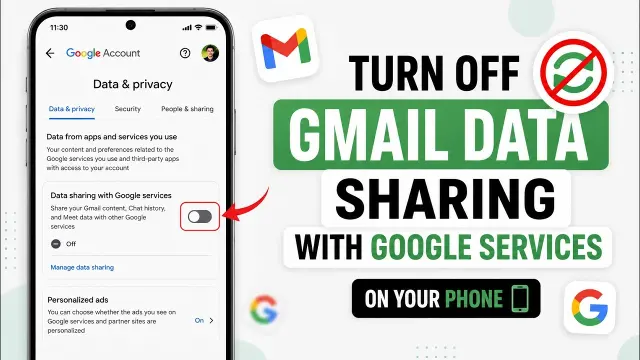
 How to Turn Off Gmail Data Sharing With Google Services
#Tech Tutorial
2 ideas
How to Turn Off Gmail Data Sharing With Google Services
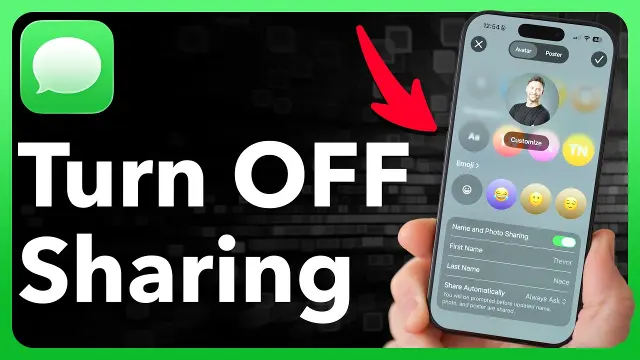 Protect Your Privacy By Turning Off Hidden iMessage Data Sharing Settings
Get new #Tech Tutorial ideas by email
Every Thursday: the week's best ideas, with the newest from #Tech Tutorial.
Related tags
A Beginner's Guide to Tech Tutorials You Can Trust
A tech tutorial is a set of instructions that walks you through a task on a device, an app or an online account, one step at a time. The form is old — printed manuals and software help files have worked this way for decades — but the habit is now part of everyday life, because the things we use keep changing and nobody is born knowing where a setting lives.
Tutorials come in a few broad shapes. Written guides list numbered steps with the exact wording of the buttons and menus you should look for. Screenshot walkthroughs show each screen as it should appear, which helps when the labels are similar and easy to confuse. Video tutorials let you watch a task being performed in real time, useful for anything involving timing or gesture. Community answers, in forums and comment threads, are the fourth kind: faster to find, but written by strangers, so they need more checking.
Why privacy settings attract so many tutorials
A large share of everyday tech questions are not about making something work but about limiting what it does quietly in the background. Accounts often arrive with sharing options switched on by default — syncing contacts, improving a service with your usage data, linking one product to another. Turning these off is usually simple, but the controls are scattered across different menus, which is exactly why people search for instructions.
Read more
What to check before you follow one
- Match the version. A guide written for an older layout can point you at buttons that have moved or been renamed. Look for the version number or date, and if the screens don't match, stop rather than guess.
- Read the whole thing first. Knowing where the steps end makes it much easier to spot when you have taken a wrong turn halfway.
- Work out what each step does, not just what it says. If a step asks you to grant access to something, or to paste in a command you don't recognise, that is a reason to pause and look it up.
- Prefer the source. The company's own help pages are duller but more accurate than a stranger's blog post, especially for anything involving passwords, payment details or account recovery.
- Change one thing at a time. Then test. If something breaks, you know precisely which switch caused it.
Practical habits
Note down what you changed and where you found it, so you can undo it later — a short list in a notes app is enough. Be cautious with tutorials that rush you, promise to unlock something for free, or ask you to disable a security feature without explaining why. And remember that settings are not permanent: updates rearrange menus, so a guide you saved two years ago may need re-reading against the screen in front of you.
#Tech Tutorial: frequently asked questions
How do I start with a tech tutorial without breaking something on my device?
Read the whole guide from beginning to end before touching a single setting, so you know where the steps are heading and can recognise when you have drifted off course. Then change one thing at a time and test it, which tells you exactly which switch caused a problem if one appears. Keep a short note of what you altered and where you found it, so you can put things back.
Which kind of tutorial should I choose: written steps, screenshots, or video?
Match the format to the task. Numbered written steps suit settings and menus, screenshot walkthroughs help when several labels look almost identical, and video is best for anything involving timing or a gesture you have to see performed. Forum answers turn up fastest but come from strangers, so treat them as a starting point to verify rather than a final word.
What should I check before trusting a tutorial I found online?
Start with the version: a guide written for an older layout may point at buttons that have since moved or been renamed, so stop rather than guess if the screens in front of you don't match. Prefer the company's own help pages over a personal blog whenever passwords, payment details or account recovery are involved. And be wary of anything that rushes you, promises something free, or asks you to switch off a security feature without explaining why.
Do I need any special tools or knowledge to follow a tech tutorial?
Usually nothing beyond the device you already have and a little patience. The one thing worth developing is the habit of asking what each step actually does rather than only what it says, since a step that grants access to something or asks you to paste in a command you don't recognise deserves a pause. If you can't work out the purpose of a step, look it up before continuing.
Why do so many tech tutorials cover privacy settings in particular?
Because the everyday question is often not how to make something work but how to stop it working quietly in the background. Accounts tend to arrive with sharing options already switched on, and the controls for turning them off are scattered across different menus rather than gathered in one place. That scattering is what sends people searching for step-by-step instructions.
How do I keep a saved tutorial useful months later?
Assume the instructions will age, because updates rearrange menus and rename options. Before following a saved guide again, re-read it against the screen you are actually looking at and treat any mismatch as a signal to stop. Jotting down the version or date you used helps you judge later whether it is still worth relying on.
Videos come from YouTube and posts from Instagram; titles and summaries are our own. All rights belong to their creators.