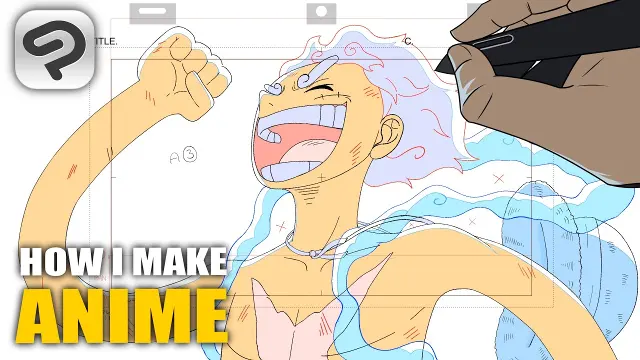
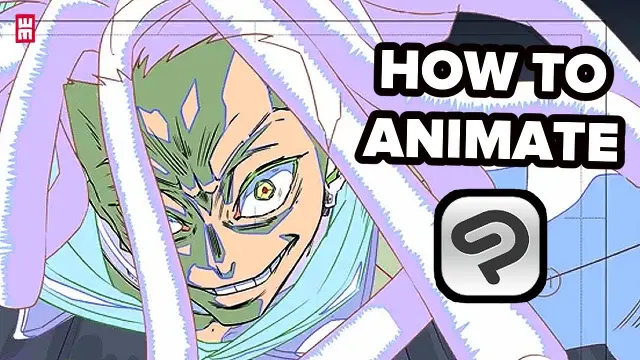
How I Make Animations on Clip Studio Paint
An artist explains their personal animation workflow and setup using Clip Studio Paint.
YouTube · Bera · 7 April 2026 Watch on YouTube
Tried this idea? Show how yours turned out.
I made this#anime #onepiece #animation #tutorial #art #clipstudiopaint
How to do it
What you need
- Clip Studio Paint
- Drawing tablet with stylus
- Layout template
- Animation timeline setup
Step by step
- Set up your Clip Studio Paint interface for animation
- Draw the storyboards for the sequence
- Block in the rough animation for a cut
- Do the cleanup pass on the rough frames
- Animate the background movement for the cut
- Move on to the next cut and animate it
- Set up the camera movement
- Export the finished animation
Tips
- Work cut by cut, taking each one through roughs, cleanup and background before moving to the next
- Use a layout template to keep your frames and camera consistent across cuts
- Handle background and camera movement as separate passes after the character cleanup is done
Written by Tagrazzi from the original's description and photo.
The title and summary are written by Tagrazzi; the video belongs to its creator and plays from YouTube.
Comments (0)
No comments yet. Be the first to comment.
Sign in to write a comment.