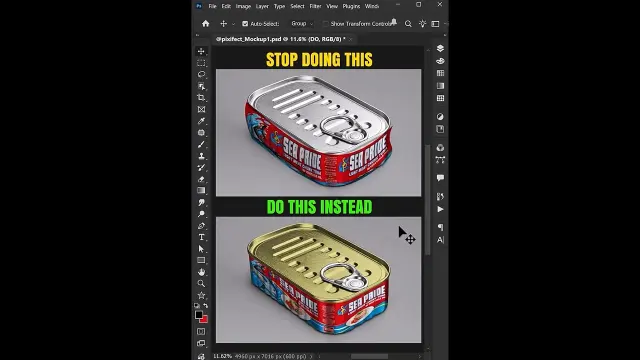
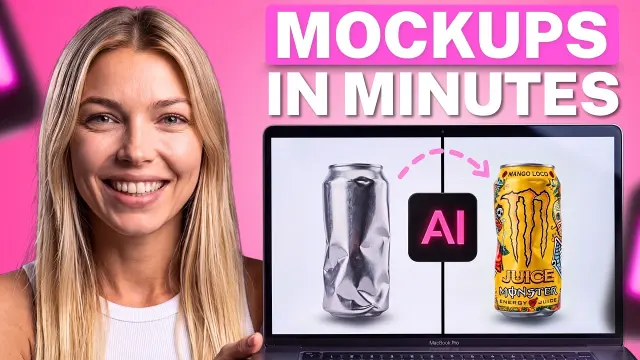
Transforming a Plain Can into a Realistic Mockup in Photoshop
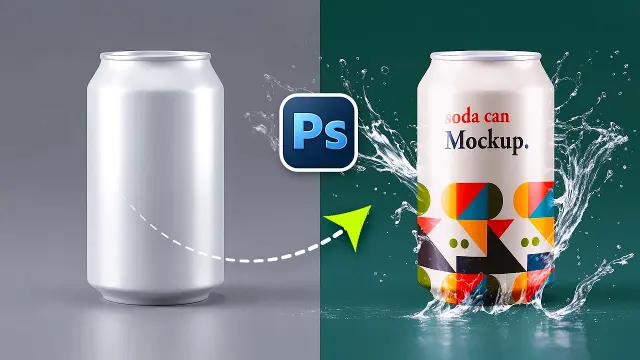
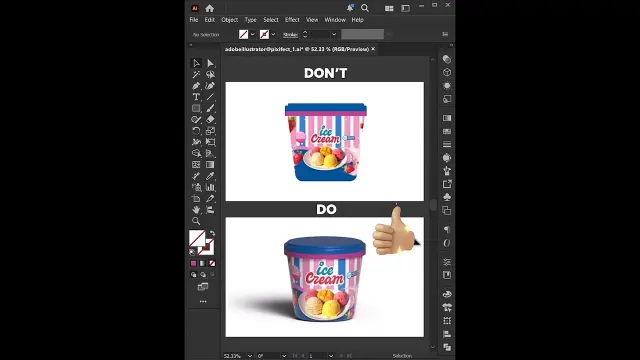
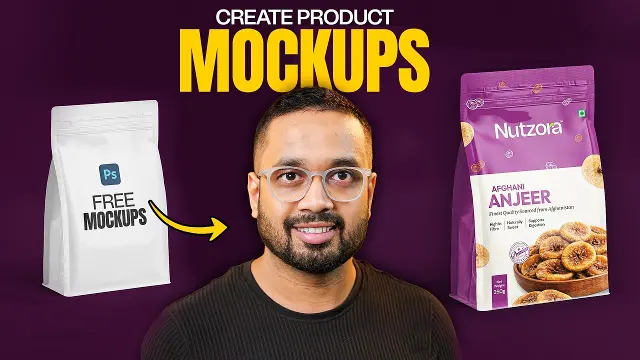
Watch how a flat design is applied to a plain can to create a polished and realistic product mockup in Photoshop.
YouTube · Pixifect · 13 October 2026 Watch on YouTube
Tried this idea? Show how yours turned out.
I made this#photoshop #graphicdesign #illustrator #adobeillustrator #adobe #logodesign #designer #mockup
How to do it
What you need
- Adobe Photoshop
- Can mockup file
- Flat label design
Step by step
- Open the can mockup file in Photoshop.
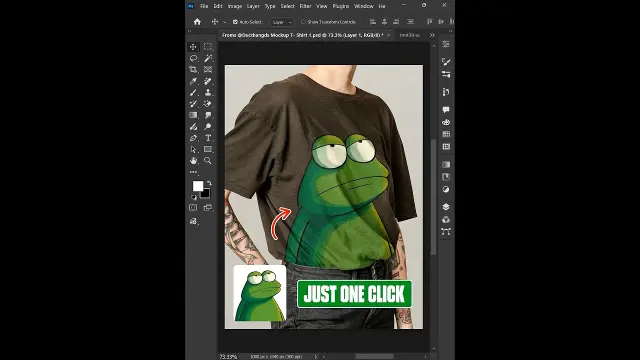
- Place your flat label design into the mockup's smart object layer.
- Use Free Transform and Warp to bend the label around the can's curved surface.
- Save the smart object so the design updates on the can.
- Export the finished mockup.
Tips
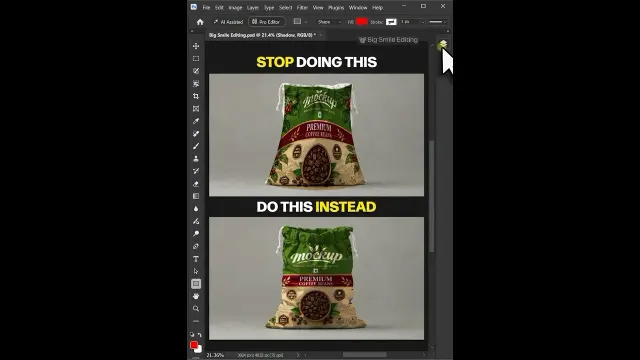
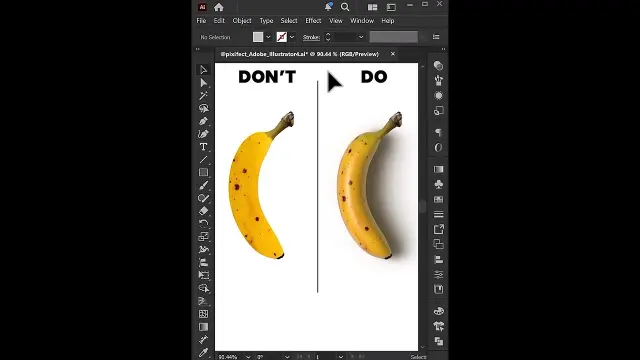
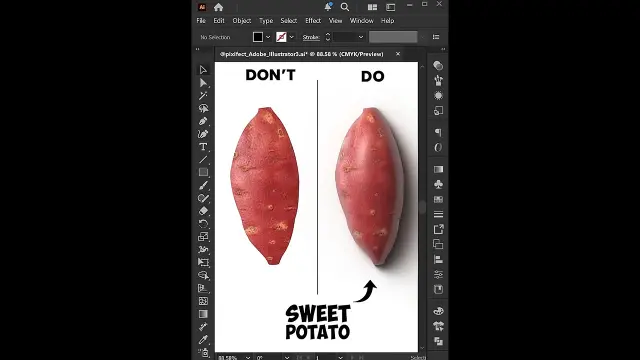
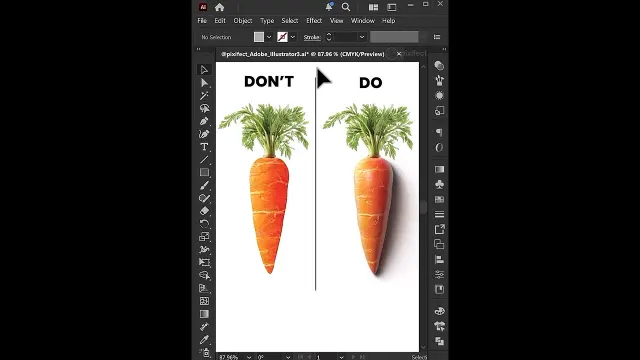
- Skip the plain flat-design preview and show the design wrapped on a real can instead — it reads as a finished product.
- Warp the label slightly at the top and bottom edges so it follows the cylinder, not just the front face.
- Keep the label as a smart object so you can swap or tweak it without redoing the warp.
Written by Tagrazzi from the original's description and photo.
The title and summary are written by Tagrazzi; the video belongs to its creator and plays from YouTube.
Comments (0)
No comments yet. Be the first to comment.
Sign in to write a comment.