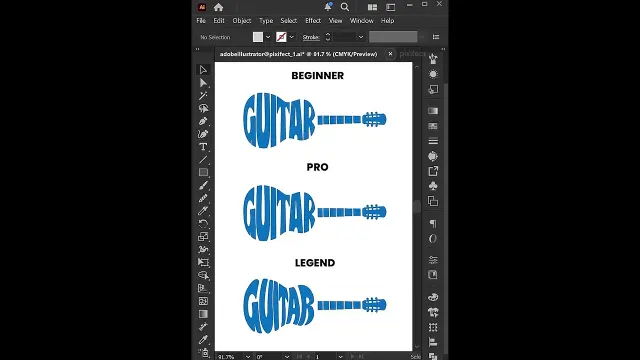
Creating Guitar Shaped Text Using Top Object in Illustrator
Tutorial on how to shape typography into a guitar silhouette utilizing the top object feature in Illustrator.
YouTube · Pixifect · 4 October 2026 Watch on YouTube
Tried this idea? Show how yours turned out.
I made this#photoshop #graphicdesign #illustrator #adobeillustrator #adobe #logodesign #designer #mockup
How to do it
What you need
- Adobe Illustrator
- text
- guitar silhouette shape
Step by step
- Type the word you want to shape.
- Place the guitar silhouette object over the text.
- Select the text and the top object.
- Use the top object feature to fit the text into the guitar shape.
- Adjust the layout until the word follows the silhouette.
Tips
- Keep the silhouette on top before applying the effect.
- Use bold lettering so the shape stays readable.
- Compare different placements for a cleaner guitar look.
Written by Tagrazzi from the original's description and photo.
The title and summary are written by Tagrazzi; the video belongs to its creator and plays from YouTube.

Comments (0)
No comments yet. Be the first to comment.
Sign in to write a comment.