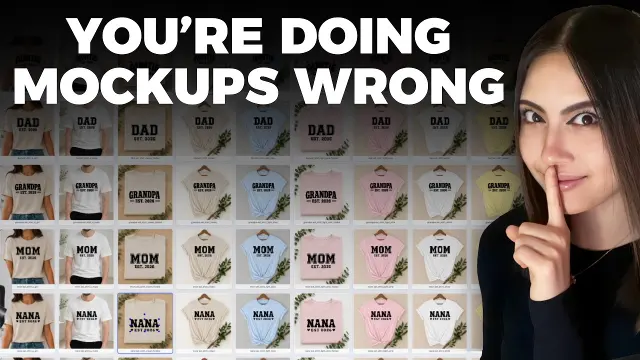
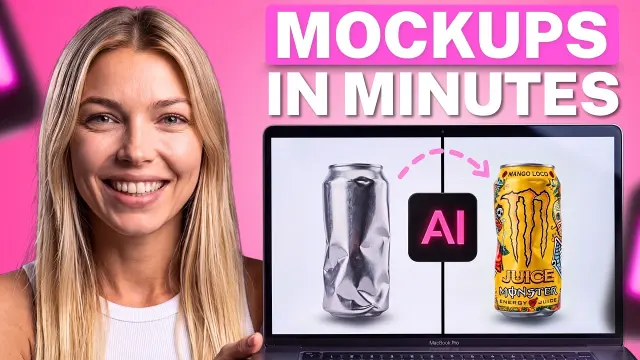
How to Quickly Generate Multiple Print on Demand Mockups
Demonstration of workspace shortcuts and tools to quickly generate a large volume of print on demand mockups.
YouTube · Tia TX · 22 September 2026 Watch on YouTube
Tried this idea? Show how yours turned out.
I made thisHow to do it
What you need
- MockupRabbit workspace
- print designs to place
- t-shirt mockups
- wall art mockups
- mug mockups
- tumbler and tote bag mockups
- promo labels or stickers
- keyboard shortcuts (Cmd/Ctrl, Shift, F, G, W, C, P)
Step by step
- Open your workspace and arrange the mockup windows using the minimap, pan, zoom, and fit.
- Add mockups with N and drop your design onto a mockup.
- Select several windows with Shift + click or Cmd/Ctrl + click and replace the main design on all of them at once.
- Duplicate a mockup with D to place multiple designs on one product.
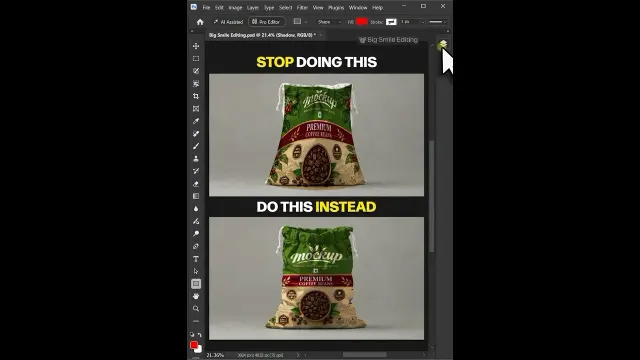
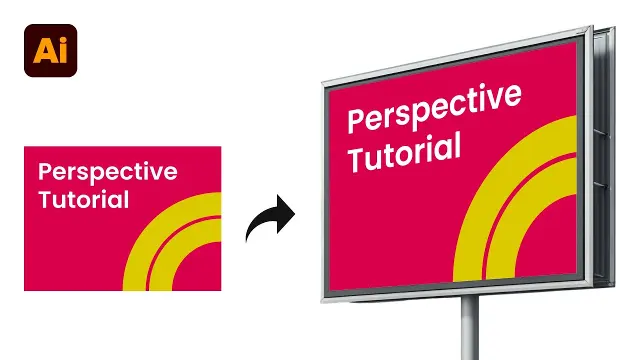
- Warp the design to fit curved items: cylinder warp and vertical arc for mugs, perspective for wall art, warp mesh (W) for fabric.
- Blend the design realistically by adjusting opacity, blur, and noise, and use multiply to drop white backgrounds.
- Clip and mask the artwork with C, then copy the clipping between windows and edit the clipping path.
- Replace all backgrounds or designs at once, add promo labels, and export as a ZIP.
Tips
- Learn the shortcut keys early — F, G, W, C, P, D, and R let you work without leaving the canvas.
- Replace designs and backgrounds across all selected mockups in one action instead of editing them one by one.
- Use multiply blend mode to remove white backgrounds so the design sits believably on the product.
Written by Tagrazzi from the original's description and photo.
The title and summary are written by Tagrazzi; the video belongs to its creator and plays from YouTube.




Comments (0)
No comments yet. Be the first to comment.
Sign in to write a comment.