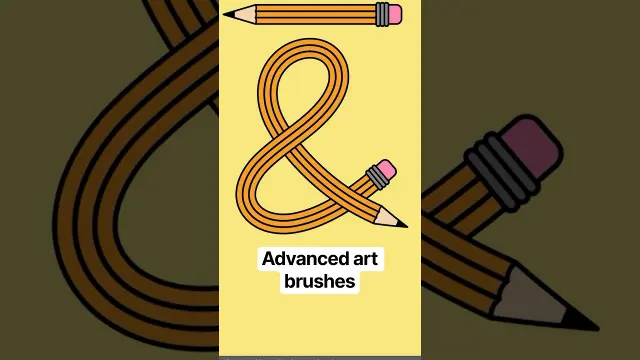
How to Use Advanced Art Brushes in Adobe Illustrator
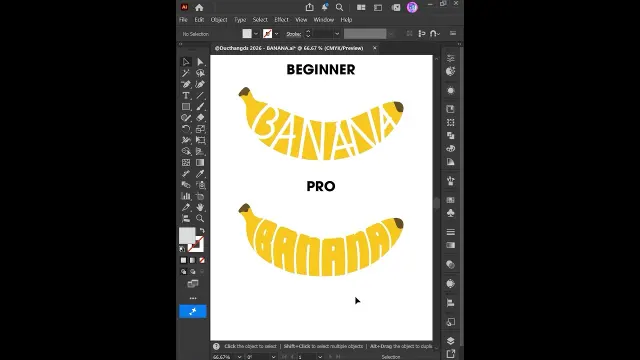
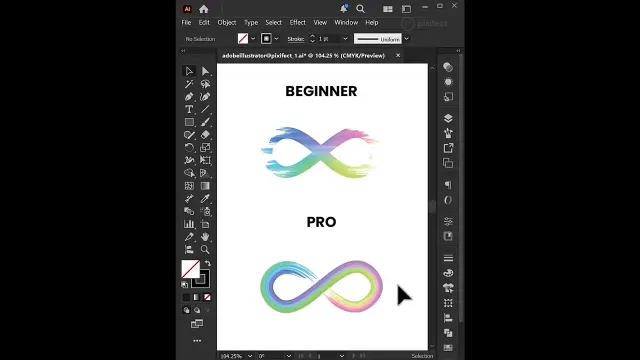
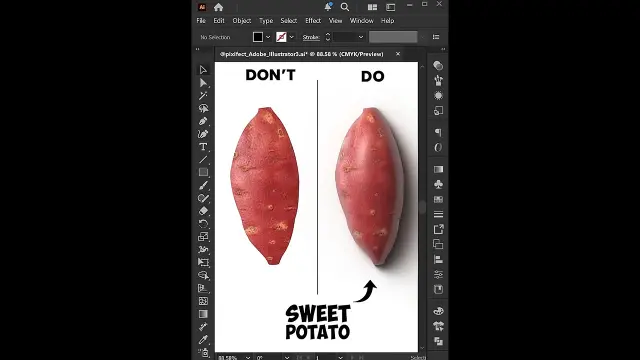
A step-by-step guide on drawing an object along a path in Adobe Illustrator without stretching the ends.
YouTube · James Barnard · 1 October 2026 Watch on YouTube
Tried this idea? Show how yours turned out.
I made this#illustrator #illustratortips #graphicdesign
How to do it
What you need
- Adobe Illustrator
- An object or artwork to turn into a brush
- Brushes panel (Window > Brushes)
- A path to apply the brush to
Step by step
- Open Window > Brushes to show the Brushes panel.
- Select your object and click New Brush.
- Choose Art Brush and press OK.
- In the Art Brush options, enable Stretch Between Guides.
- Drag the guides past the ends of your artwork.
- Press OK to save the brush.
- Draw or select a path and apply the new art brush so the object follows it without stretched ends.
Tips
- Moving the guides beyond the artwork ends is what keeps the shape from stretching as it follows the path.
- Turn the artwork into an Art Brush once, then reuse it on any path in the document.
Written by Tagrazzi from the original's description and photo.
The title and summary are written by Tagrazzi; the video belongs to its creator and plays from YouTube.
Comments (0)
No comments yet. Be the first to comment.
Sign in to write a comment.