Essential Shortcut Keys and Beginner Guide for Illustrator
A beginner-friendly tutorial highlighting essential shortcut keys and basic navigation in Adobe Illustrator.
YouTube · Pixifect · 28 July 2026 Watch on YouTube
Tried this idea? Show how yours turned out.
I made this#tutorial #photoshop #graphicdesign #illustrator #adobeillustrator #adobe #logodesign #designer #mockup
How to do it
What you need
- Adobe Illustrator
- vector artwork or shapes
- an image or photo for masking
- text or objects for blending
- type on a path or object for warping
Step by step
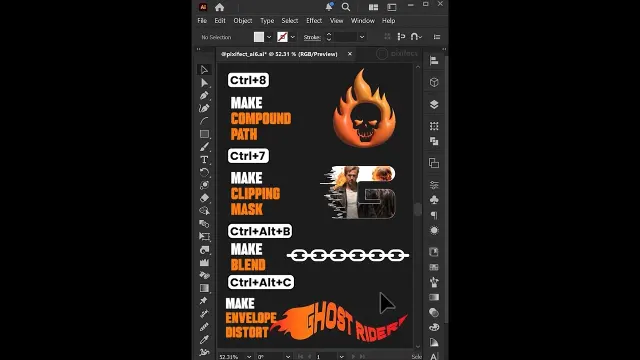
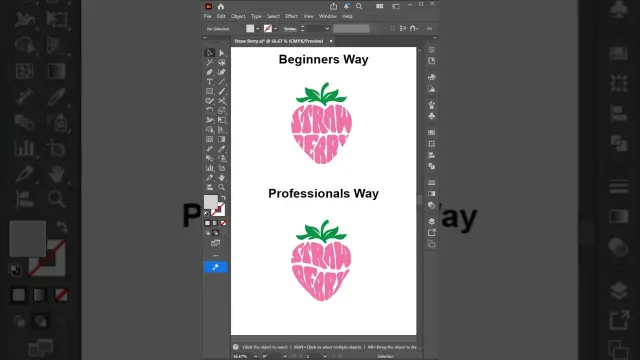
- Select two or more paths and press Ctrl+B to make a compound path.
- Place an image over a shape, select both, and press Ctrl+7 to make a clipping mask.
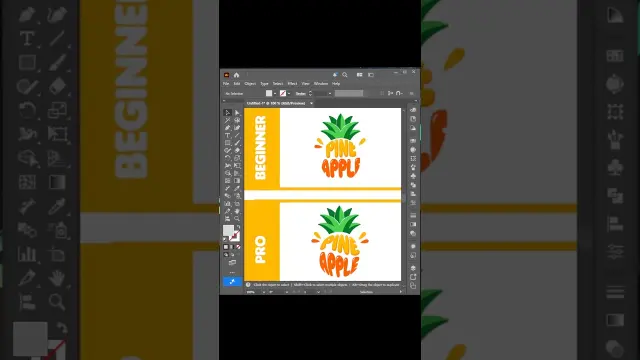
- Select two objects and press Ctrl+Alt+B to make a blend between them.
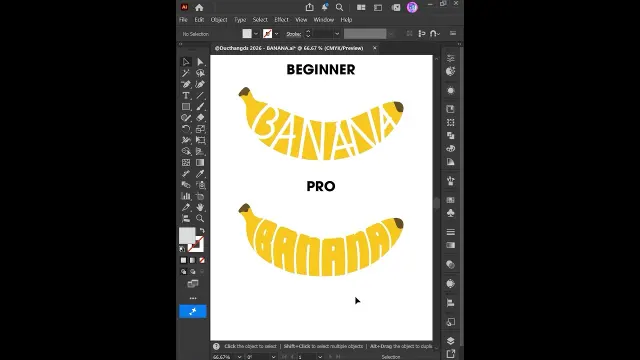
- Select text or an object and press Ctrl+Alt+C to make an envelope distort.
- Adjust the result with the Direct Selection tool if the shape needs tweaking.
Tips
- The compound path shortcut merges selected paths so they behave as one object, useful for logos and cutouts.
- A clipping mask needs the shape on top of the image for Ctrl+7 to work as expected.
- Blends and envelope distortions both stay editable, so you can go back and change the originals later.
Written by Tagrazzi from the original's description and photo.
The title and summary are written by Tagrazzi; the video belongs to its creator and plays from YouTube.
Comments (0)
No comments yet. Be the first to comment.
Sign in to write a comment.